Make a WhatsApp Sticker Pack not only used on WhatsApp
Creating your own WhatsApp stickers comes with plenty of perks. For one, it’s a fun way to share inside jokes and memes with your friends. On top of that, businesses can leverage custom stickers as a unique marketing tool to boost brand awareness and engage with customers.
While you can create stickers directly within WhatsApp or use third-party apps, Expresstic takes it a step further. Not only can you design personalized stickers with ease, but it’s also the one that integrates them directly into your iOS keyboard. This means you can instantly reuse your creations across every app that supports the system sticker keyboard.
In this article, I will walk you through the process of creating your own sticker pack in Expresstic. To make it even better, the features we’ll use are entirely free, ad-free, and account-free, so you can start creating with zero hassle.

To start, head over to the App Store and download Expresstic (Link here). With a tiny footprint of just 4 MB, it downloads in a flash and won't weigh down your iPhone or iPad.
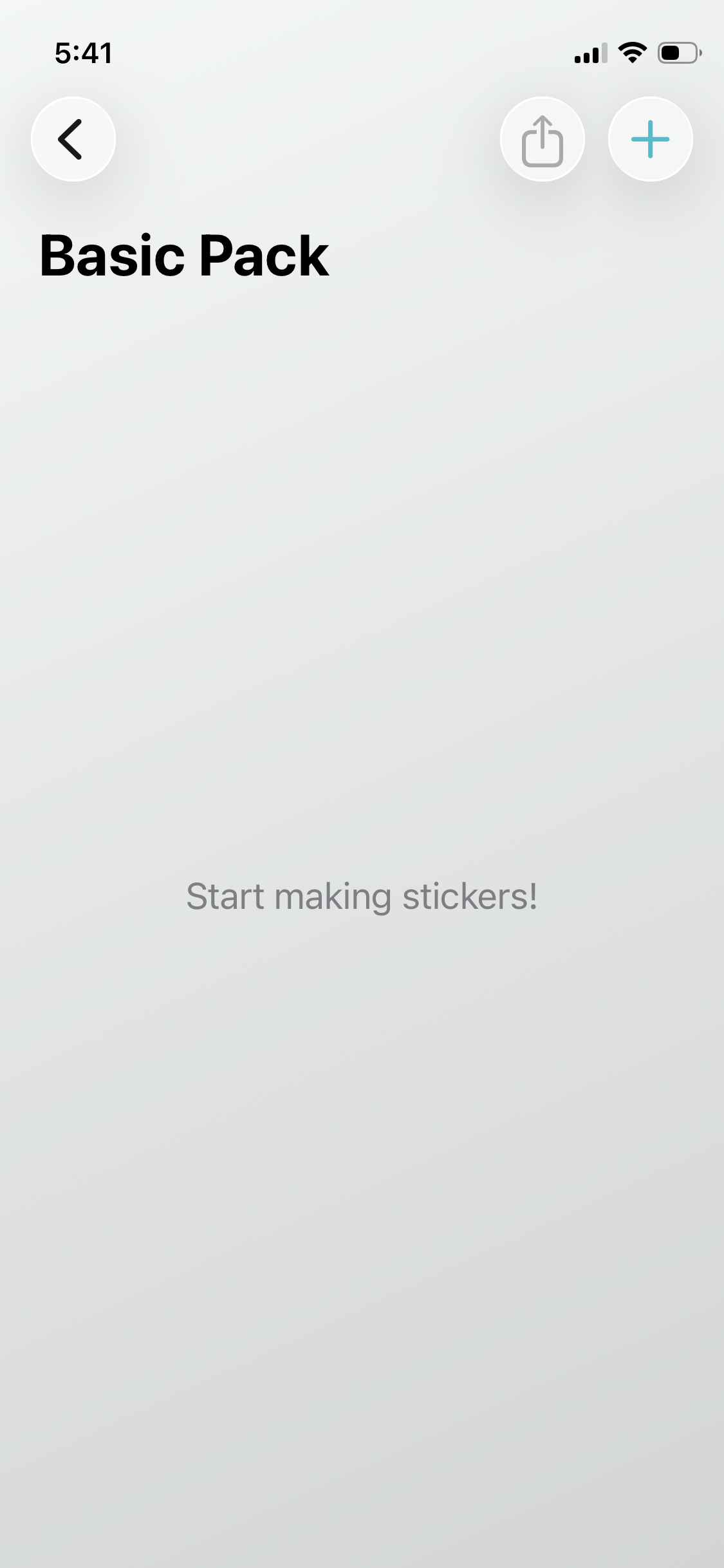
When you open the app for the first time, you will be greeted by the 'Basic Pack' interface. Simply tap the '+' button to start creating your very first sticker.
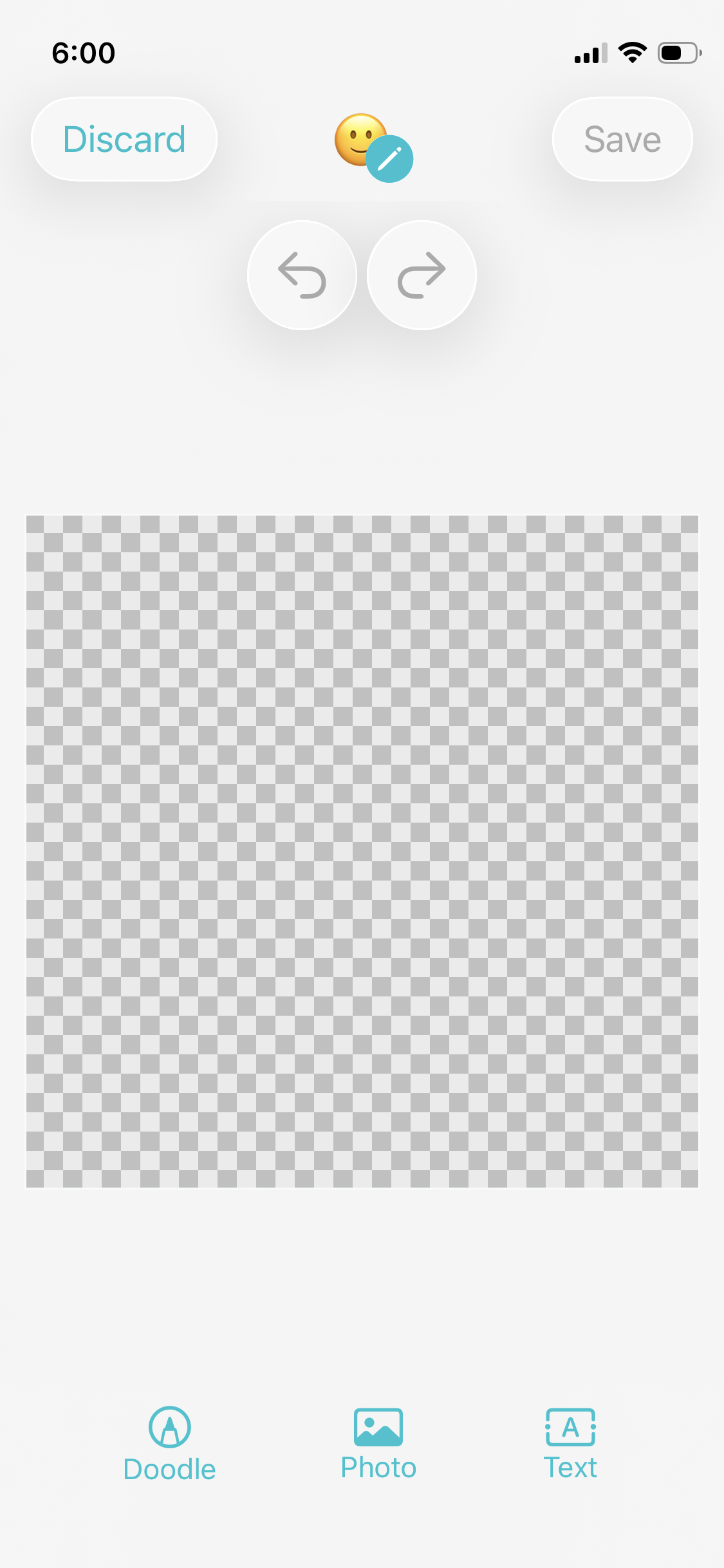
Inside the sticker editor, there are three types of elements you can add to customize your creation: doodles, text, and photos.
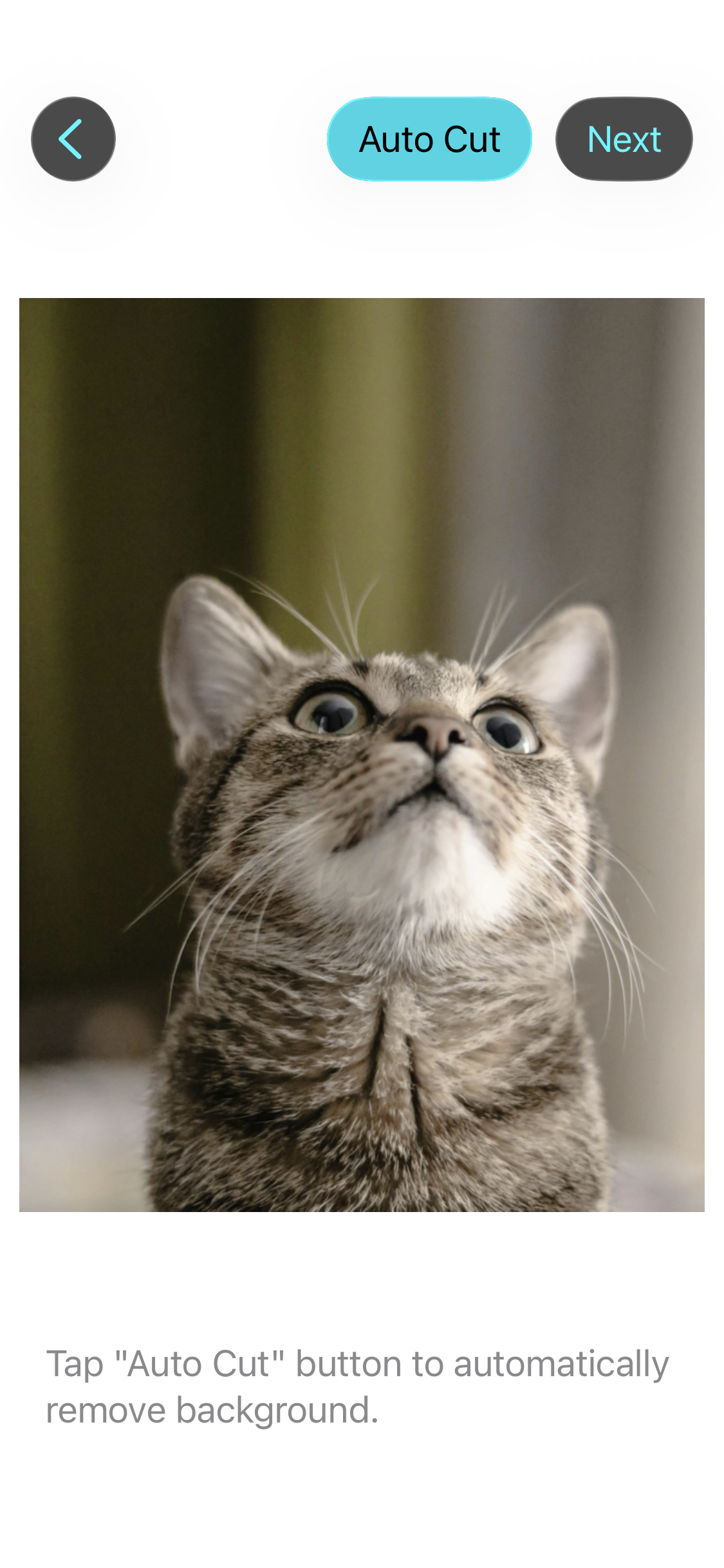
Let's start by adding a photo. Tap the 'Photo' button and select an image from your library. The local AI can instantly remove the background for you. If needed, you can easily refine the edges manually after the automatic cutout. Tap the checkmark button to add the photo to the editor.
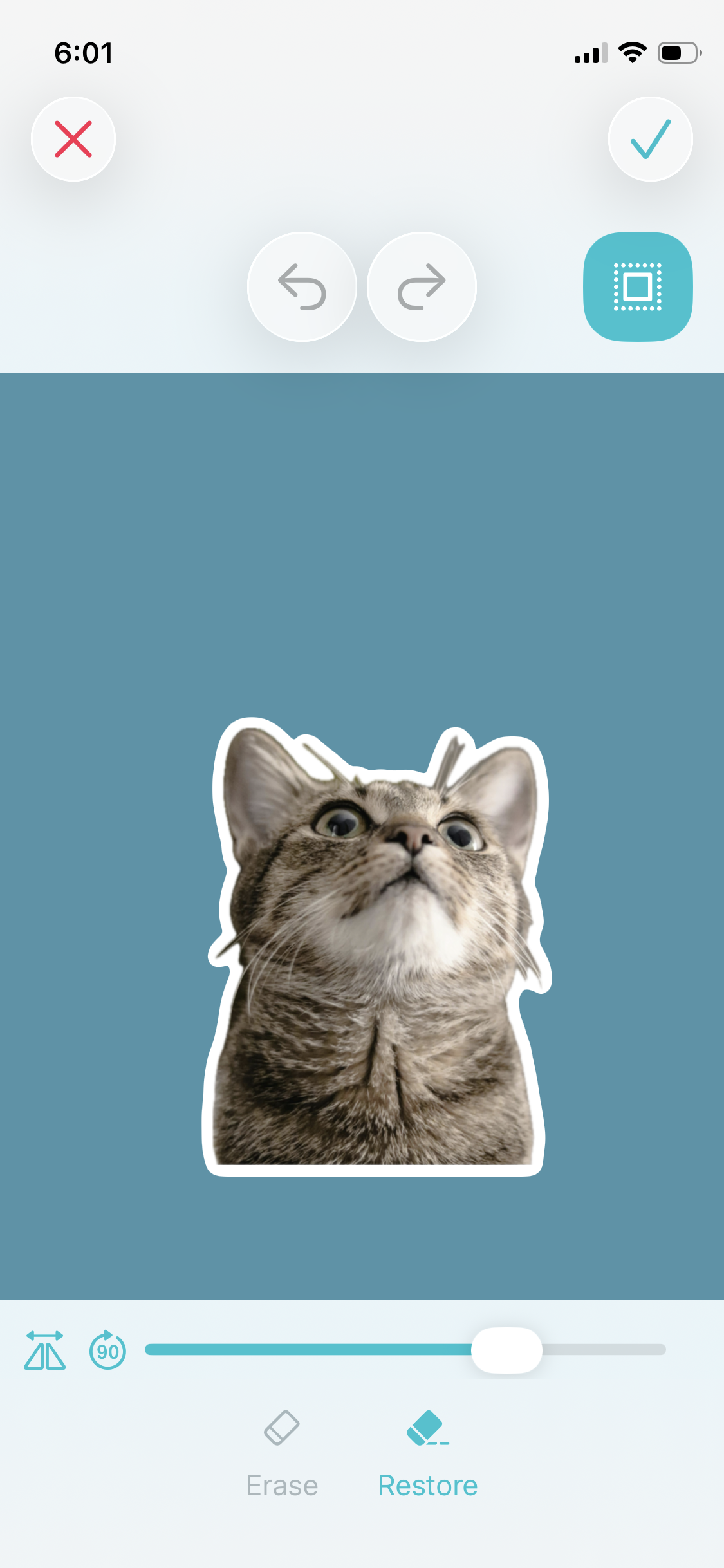
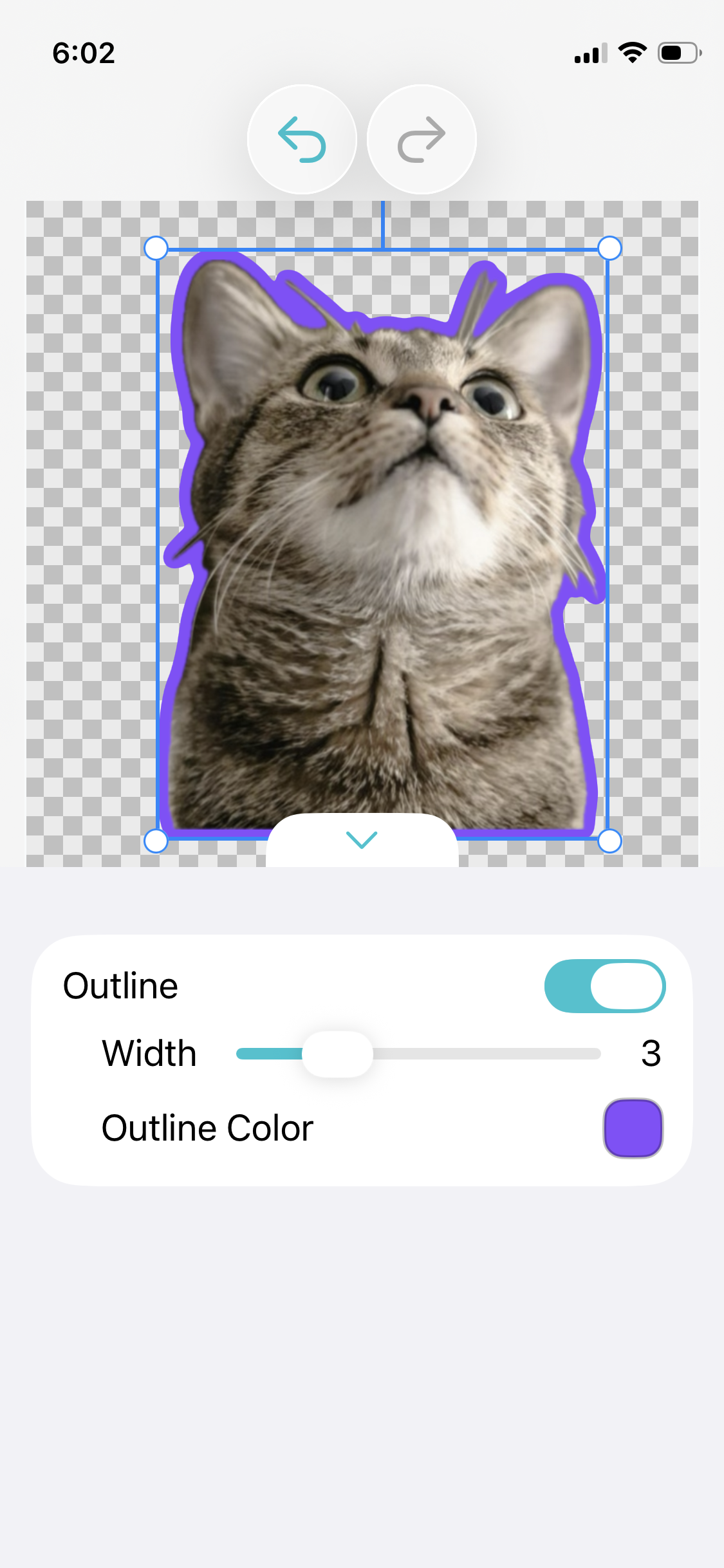
Once added, simply tap the photo to move, resize, or rotate it freely. While in this editing mode, you can also tap the 'Style' button to add a stylish outline to your sticker.
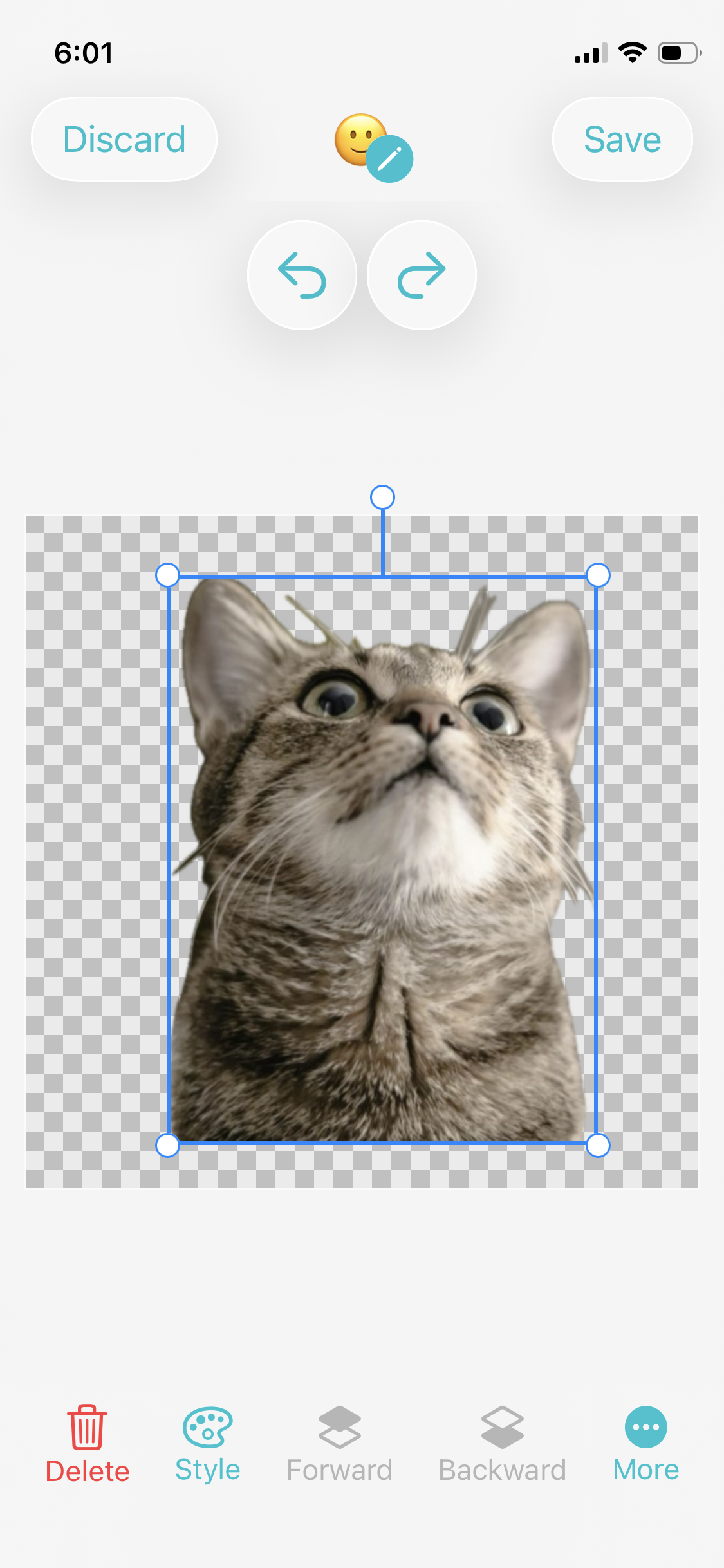
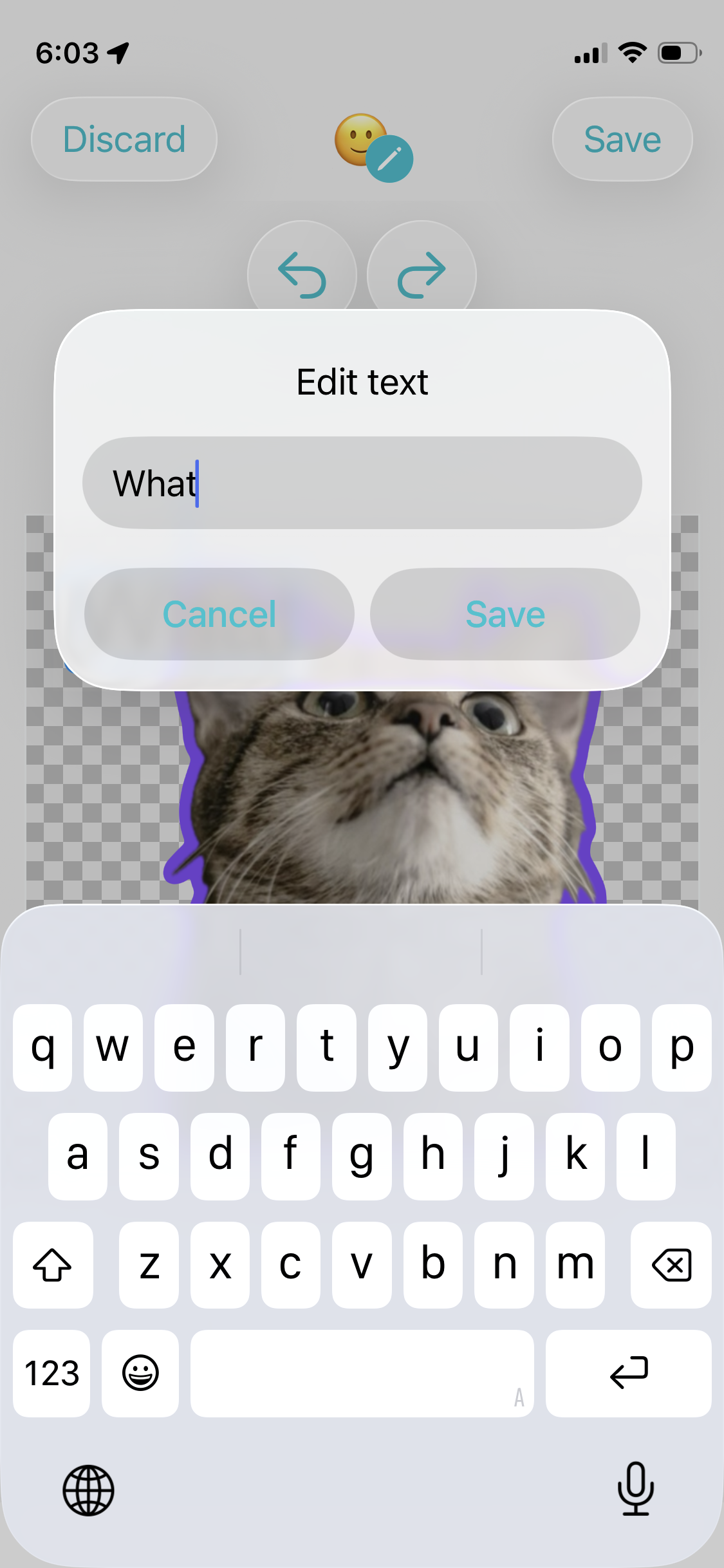
Let's spice things up with some words! A sticker is always ten times funnier with a great punchline. Tap the 'Text' button to add a text object, and just tap the text to start typing away!
Just like with photos, you have full control over the layout of your text. But also choose unique fonts, and apply different font styles.
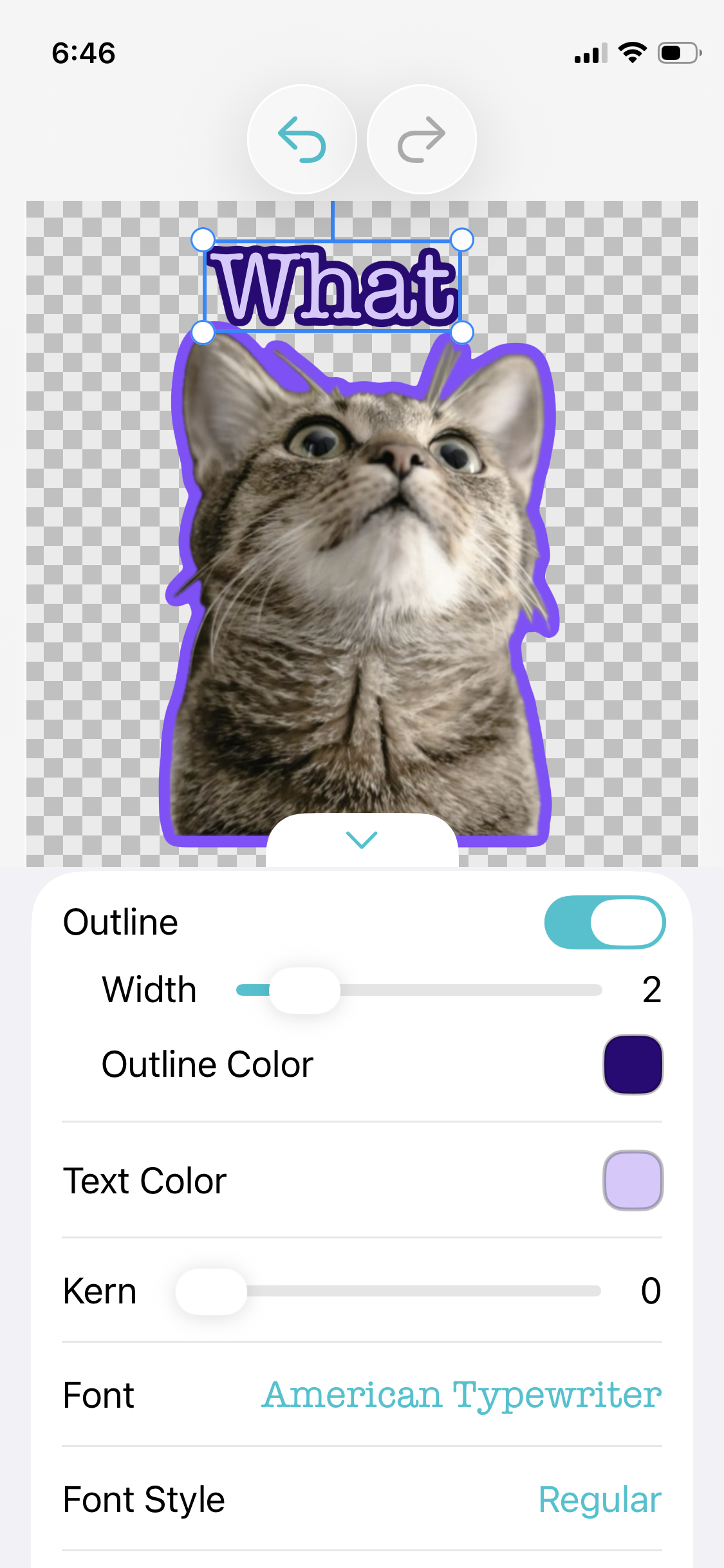
Finally, to add doodles: tap any blank area and select the 'Doodle' button. Use the Lightbox feature to trace and add custom effect lines directly onto your creation. Similar to photo objects, you can add an outline to your doodles so they remain perfectly visible on all backgrounds.
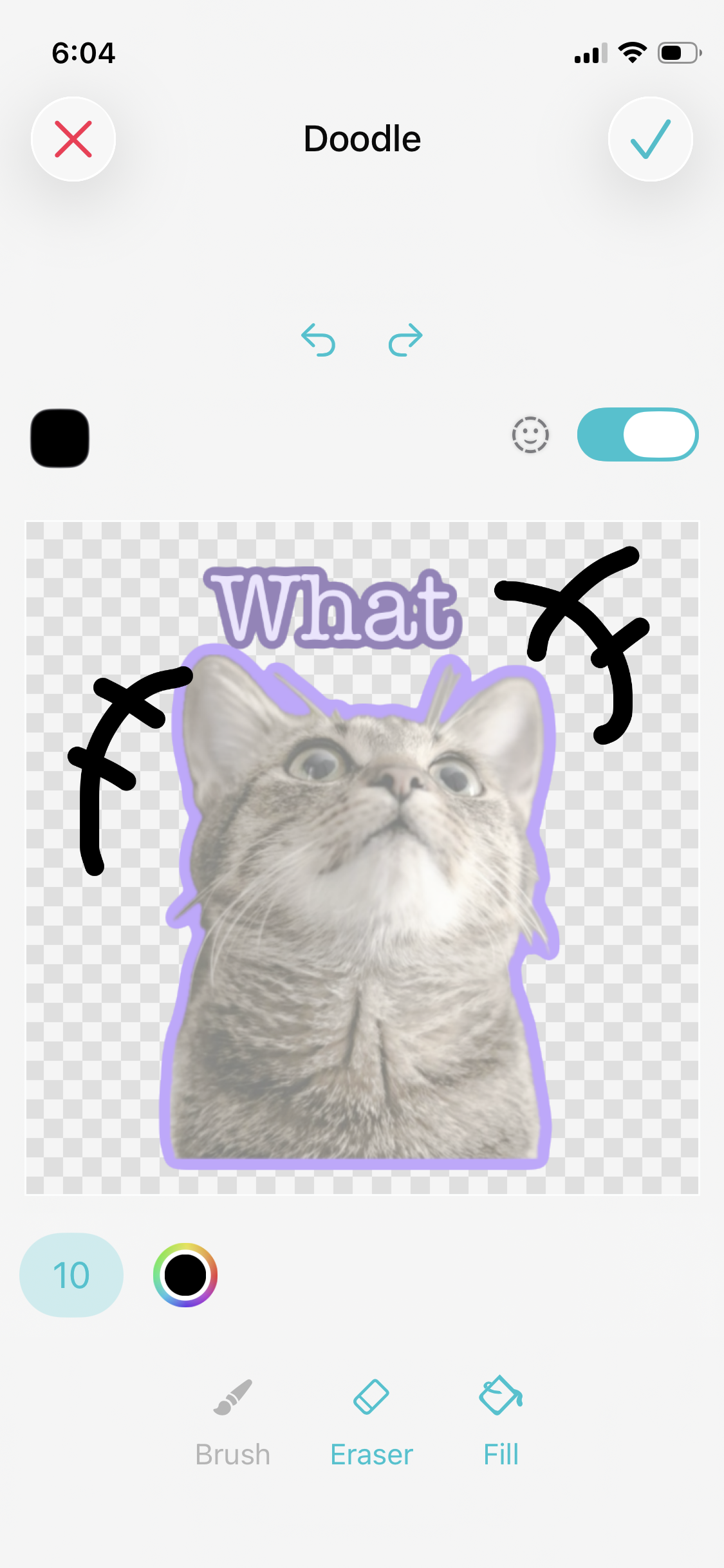
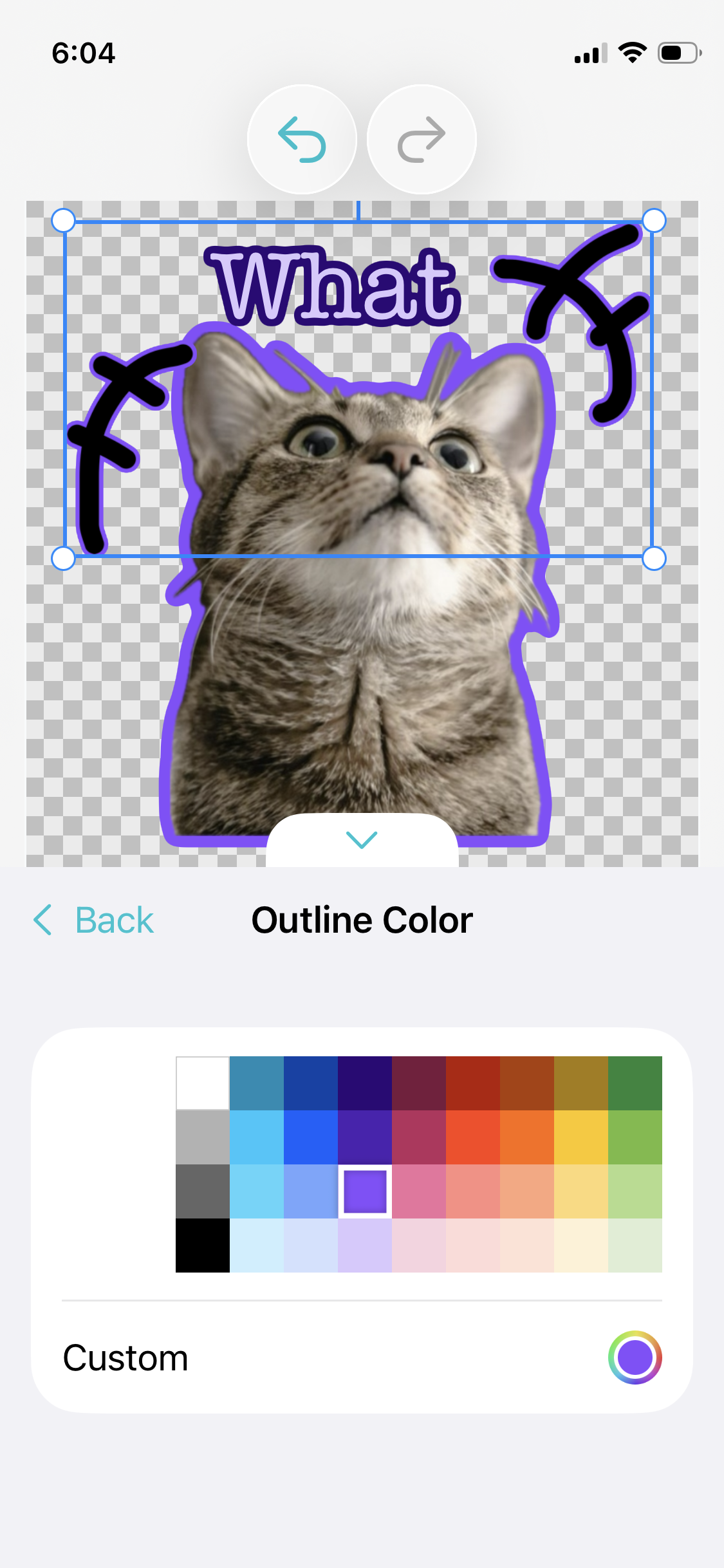
Feel free to add more elements and layout your sticker any way you want. Then, tap 'Save' to finish your first sticker. Keep in mind that your creations are never locked in; you can easily jump back in to edit them anytime by tapping the sticker.
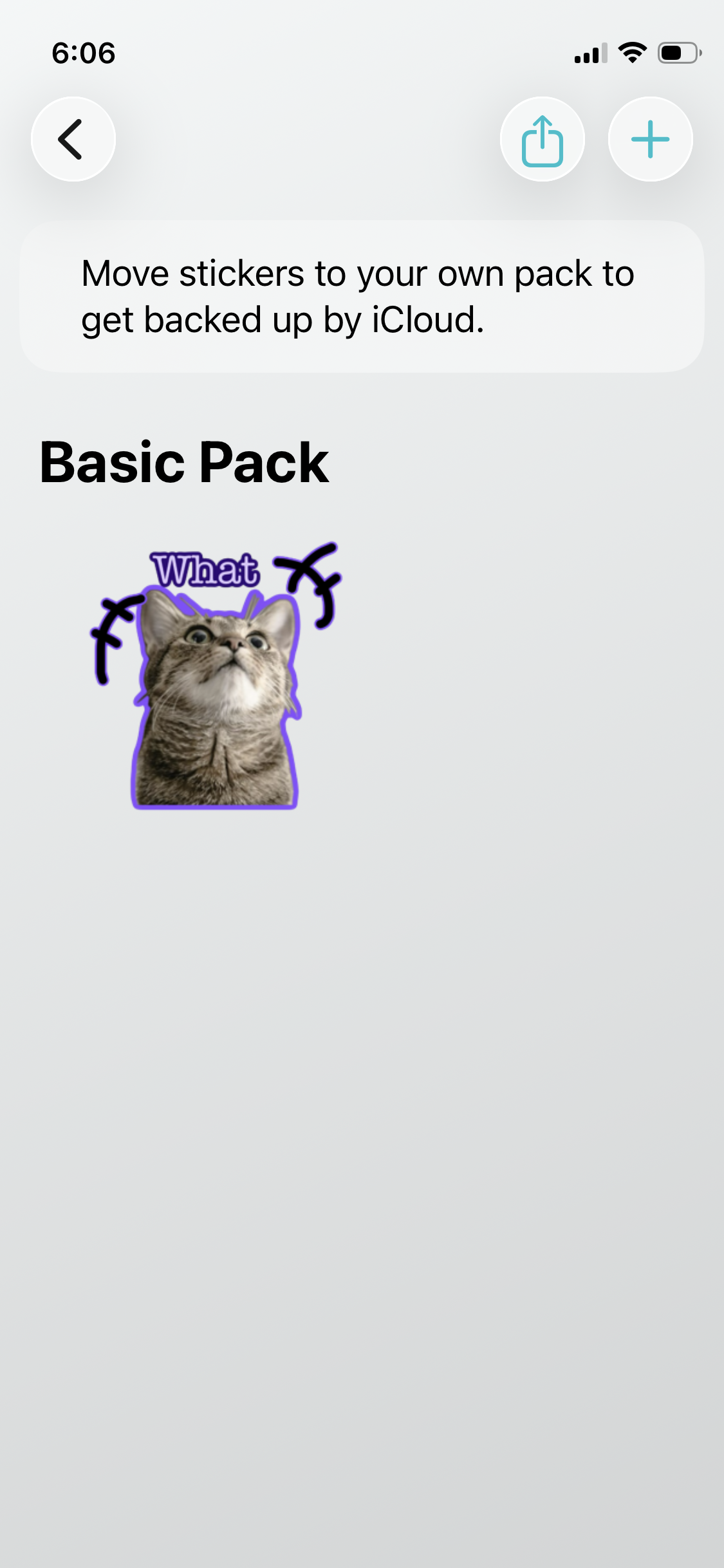
Keep in mind that WhatsApp rules require at least three stickers per pack. After making two more stickers to complete your set, hit the 'Share' button next to the '+' icon to proceed. Simply choose 'Create WhatsApp Sticker Pack,' and you'll be instantly redirected to WhatsApp, where you can do a quick review and confirm the pack creation.
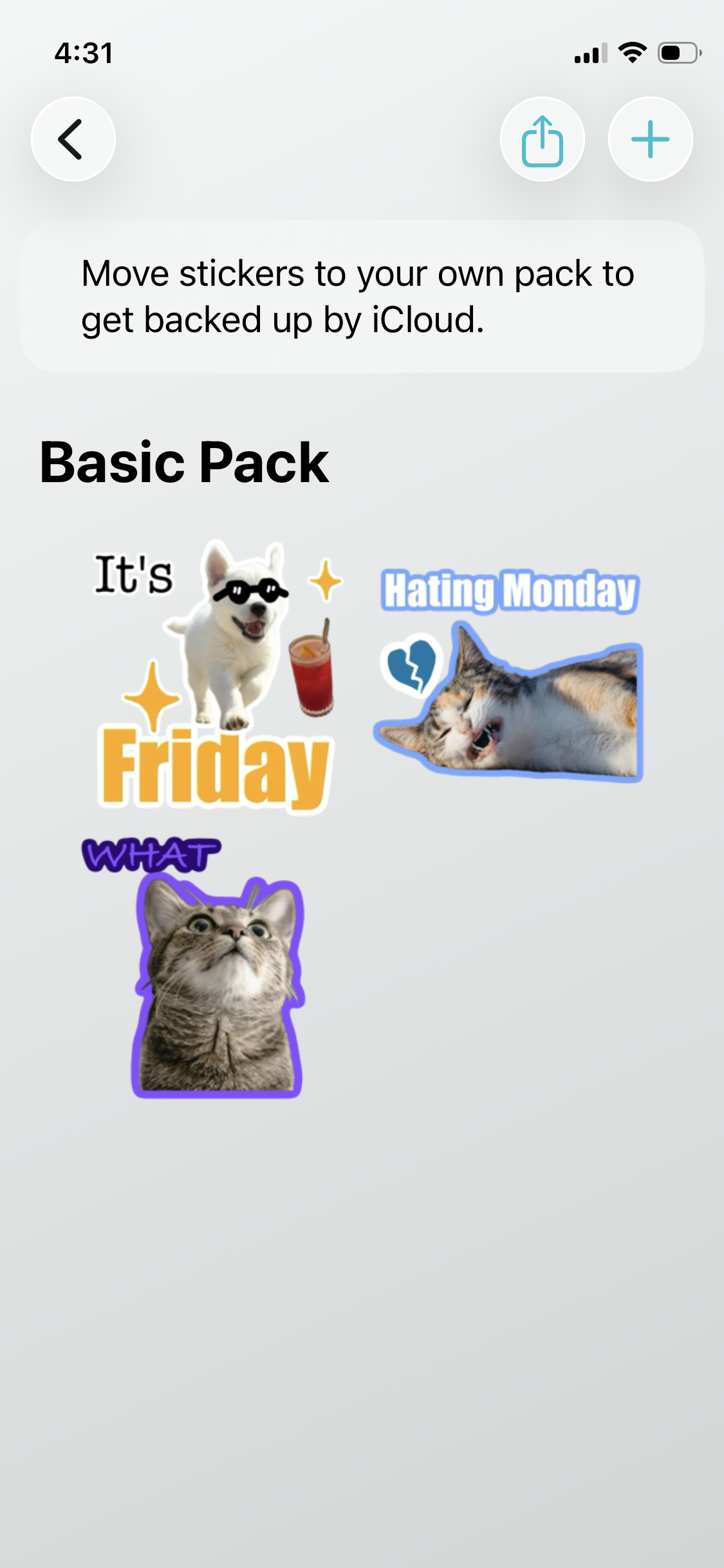
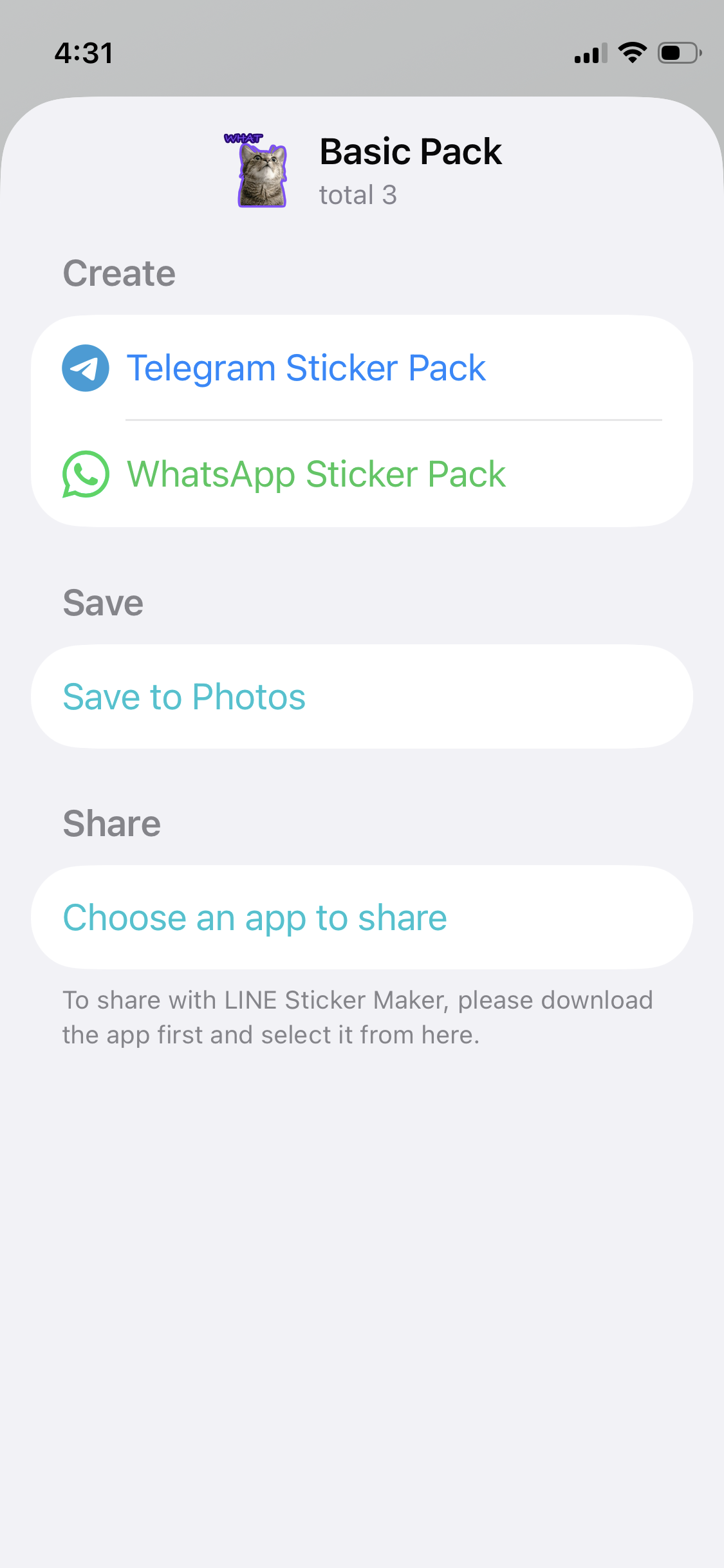
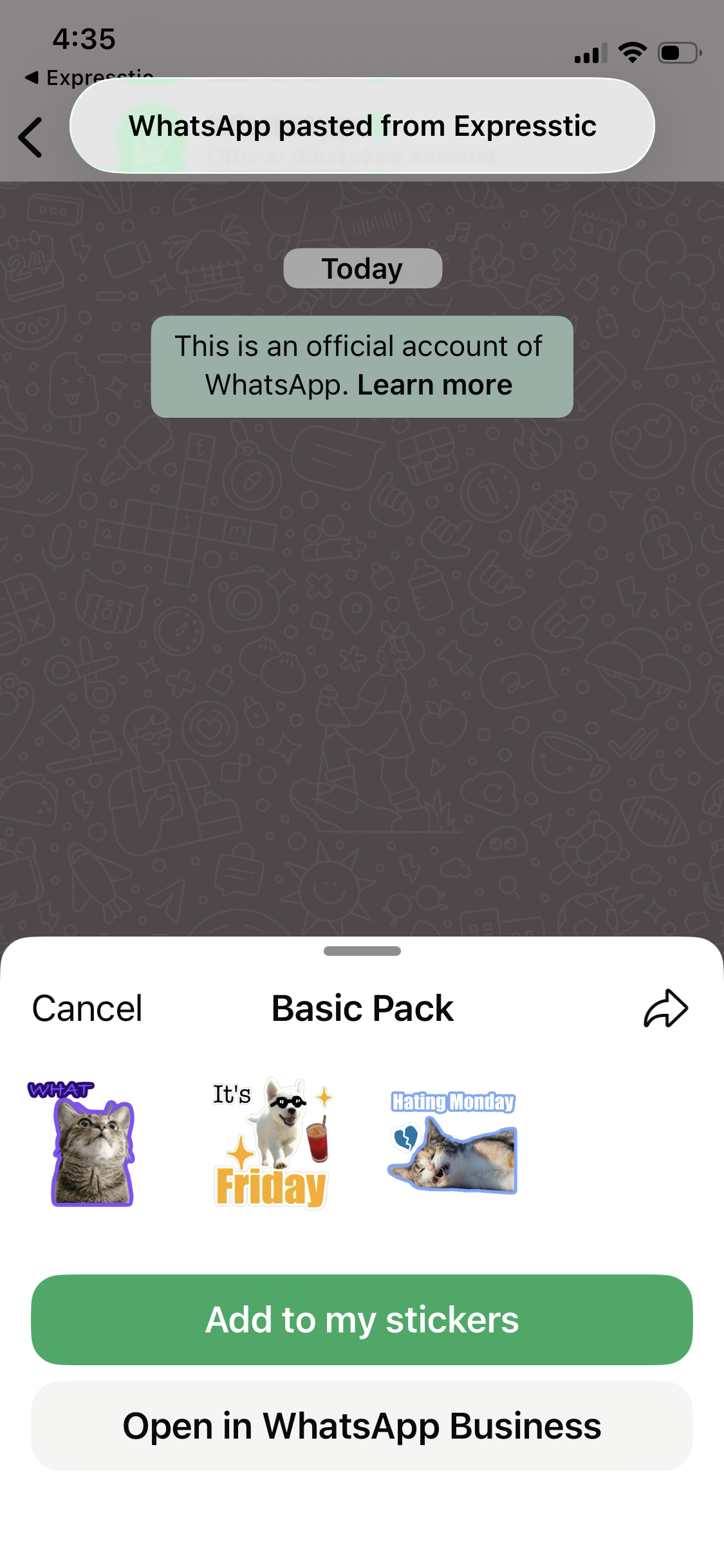
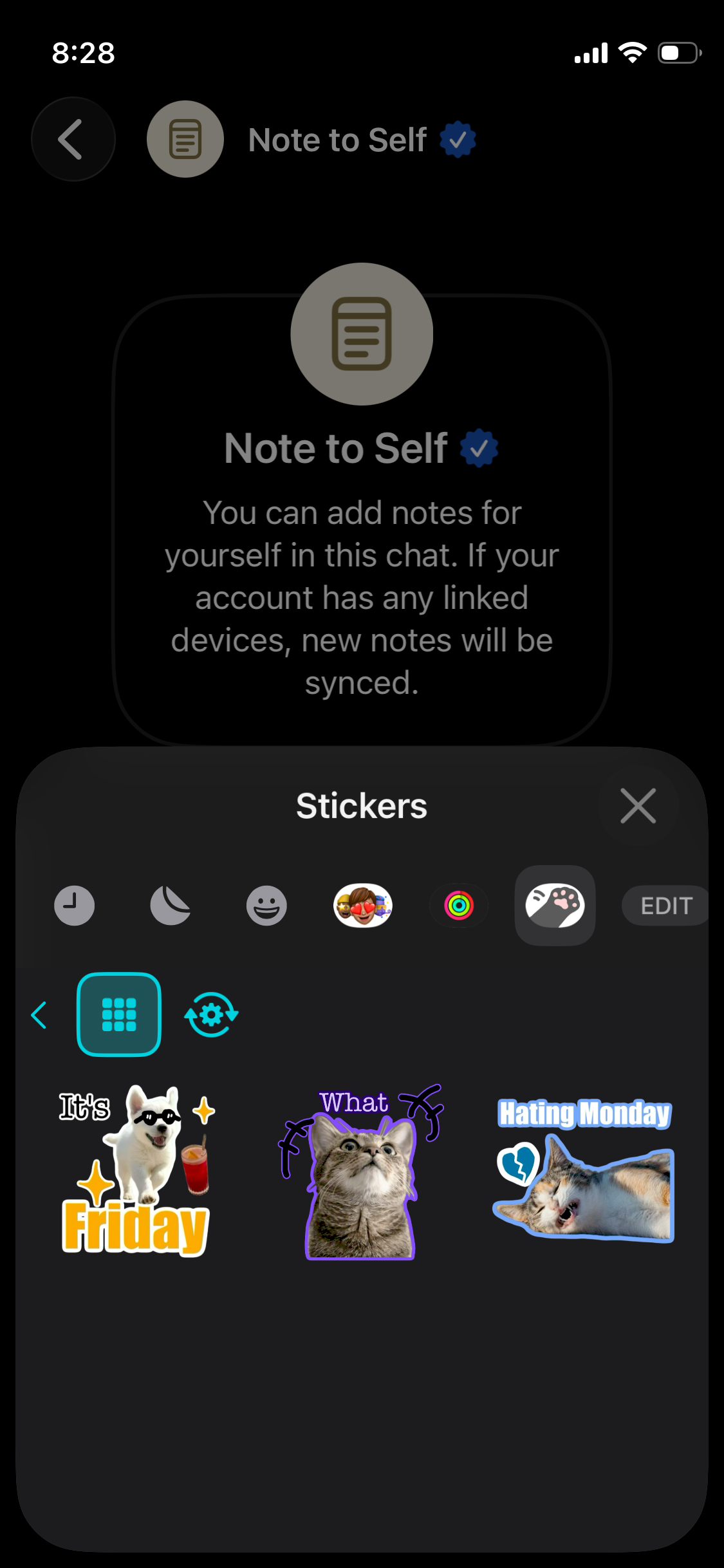
Now, here is the best part: The sticker pack you just imported to WhatsApp was already fully integrated into your iOS keyboard! This means your creations aren't trapped in just one app—you can seamlessly use them across iMessage, Signal, Messenger, and even the native Photos app. Basically, anywhere that supports the system sticker keyboard, your custom stickers are ready to shine.
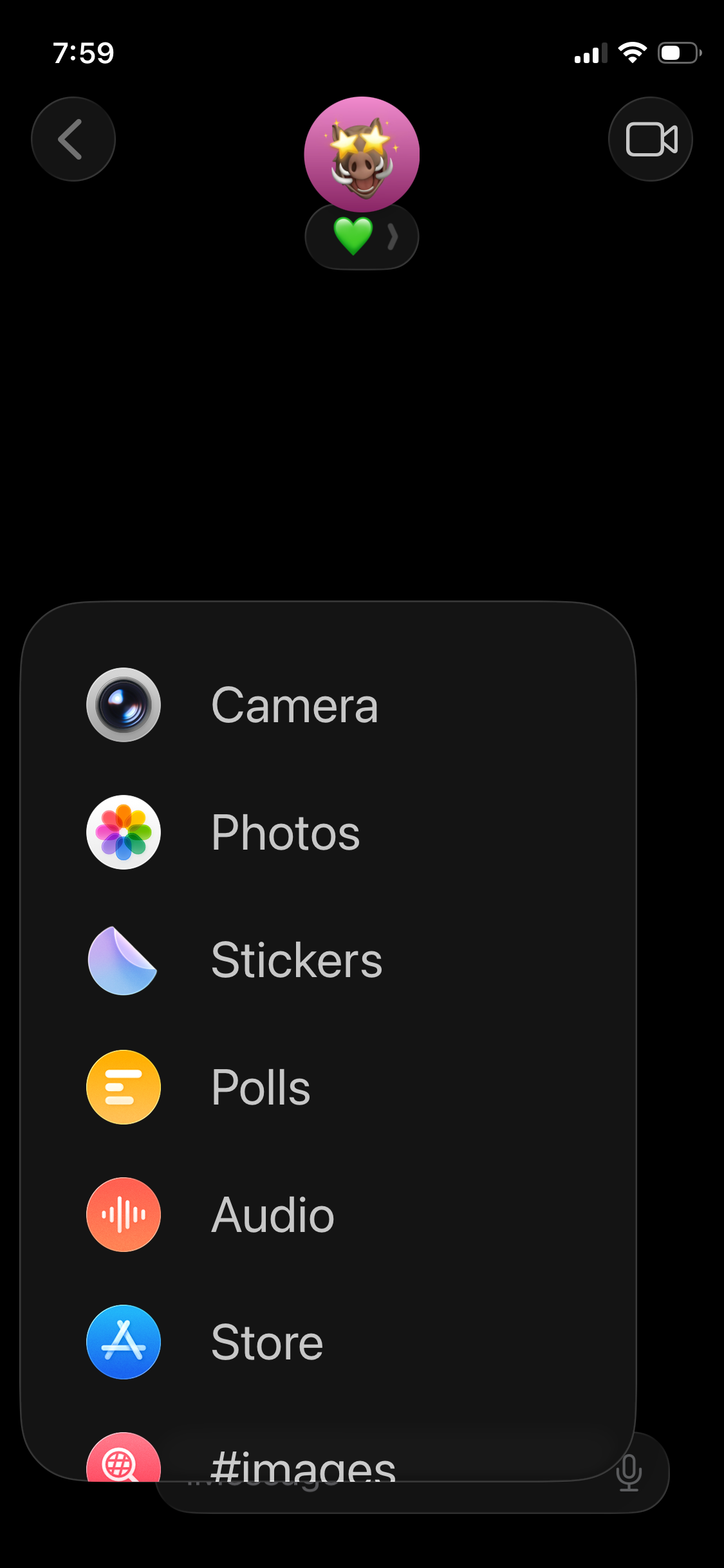
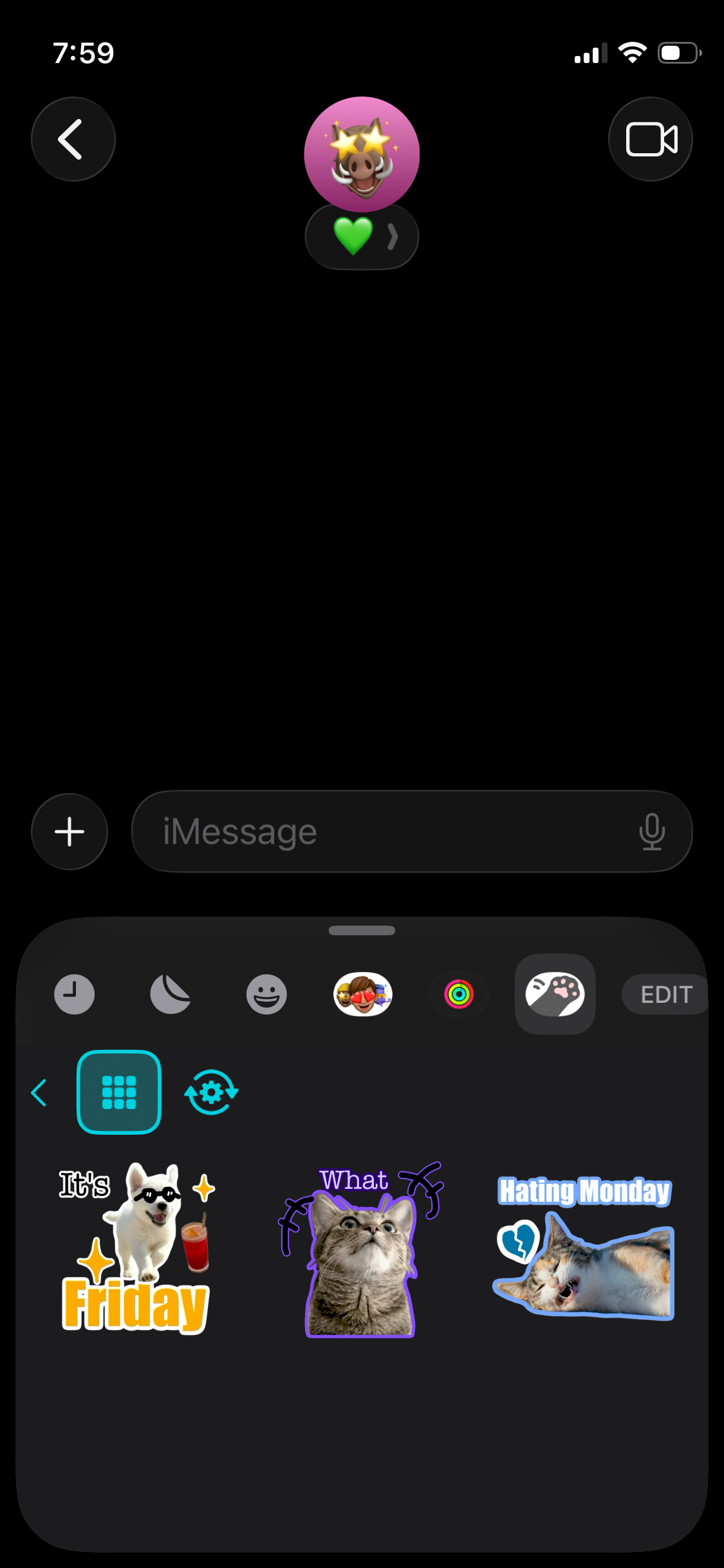
To use your stickers in iMessage, open a conversation, tap the '+' button, and select 'Stickers'. From there, just switch to the Expresstic tab to access all the custom stickers you just created.
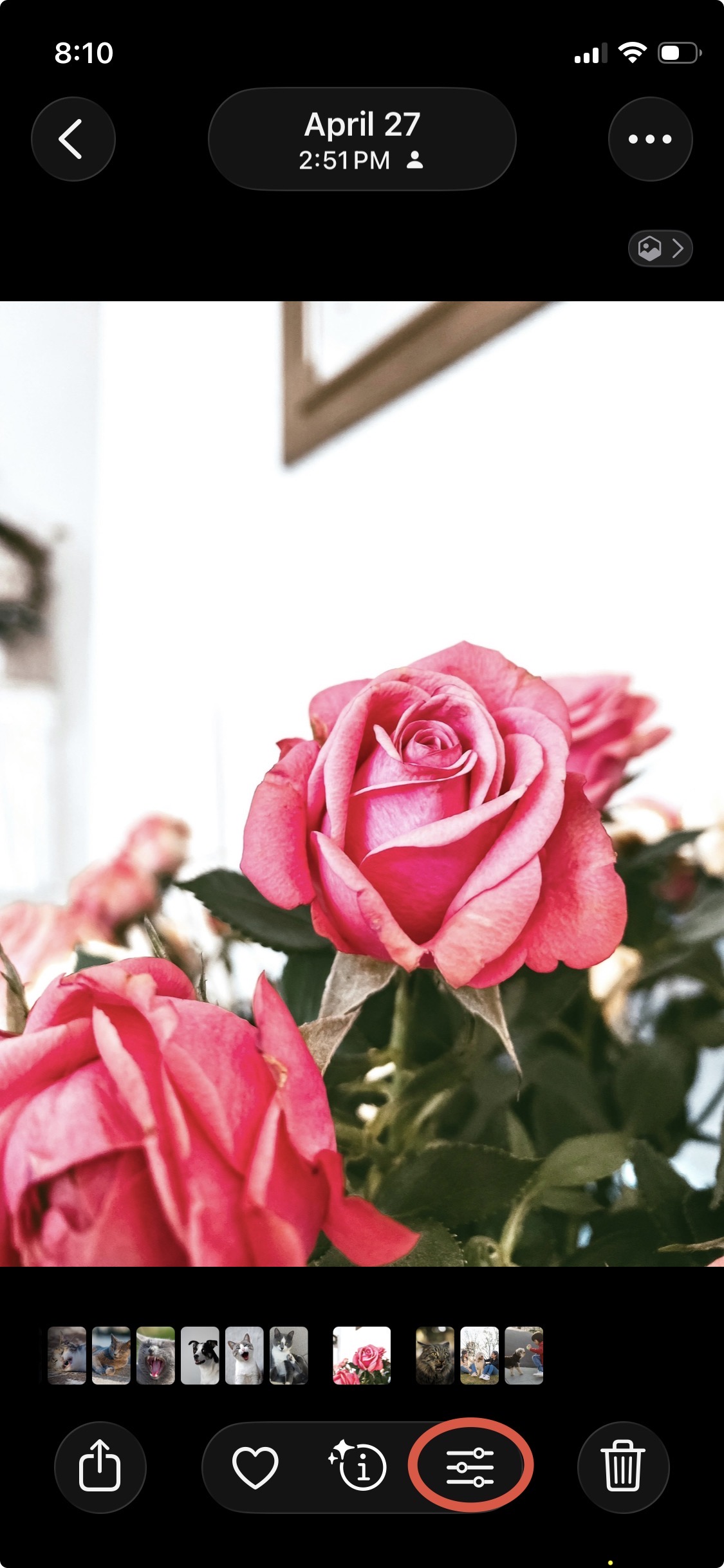
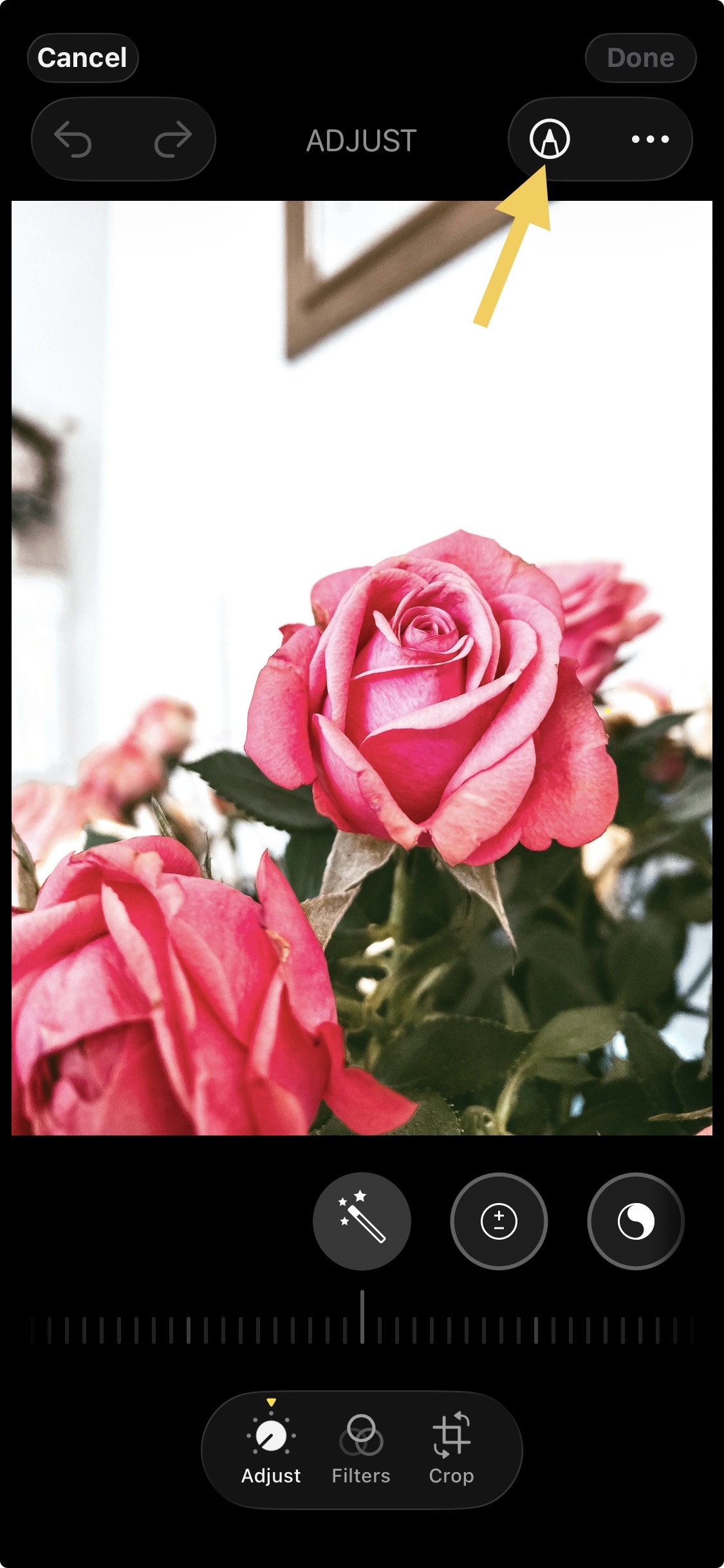
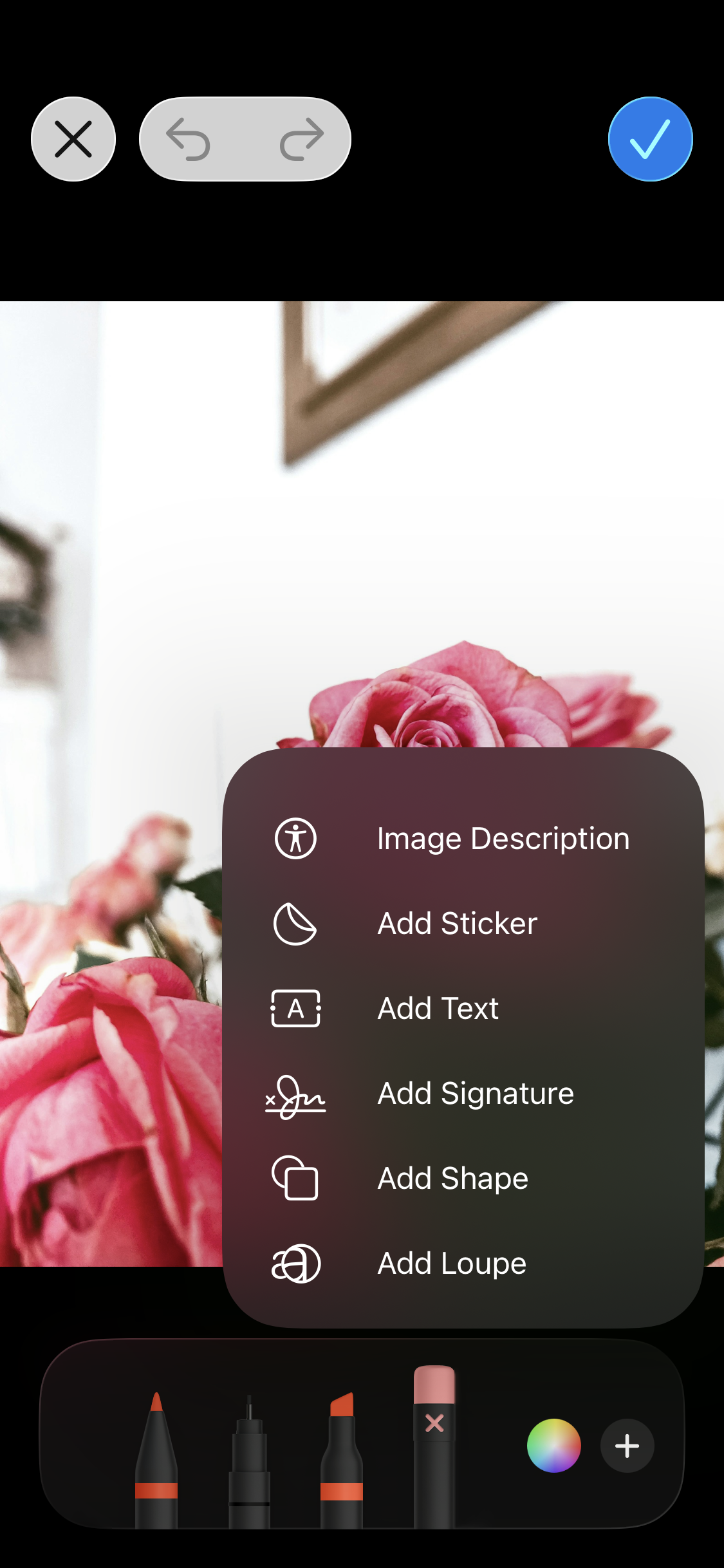
To use your stickers in Photos, select an image, tap 'Edit,' and then tap the Markup icon at the top right of the editor. From the drawing toolbar at the bottom, tap the '+' button and select 'Add Sticker' to bring in your creations.
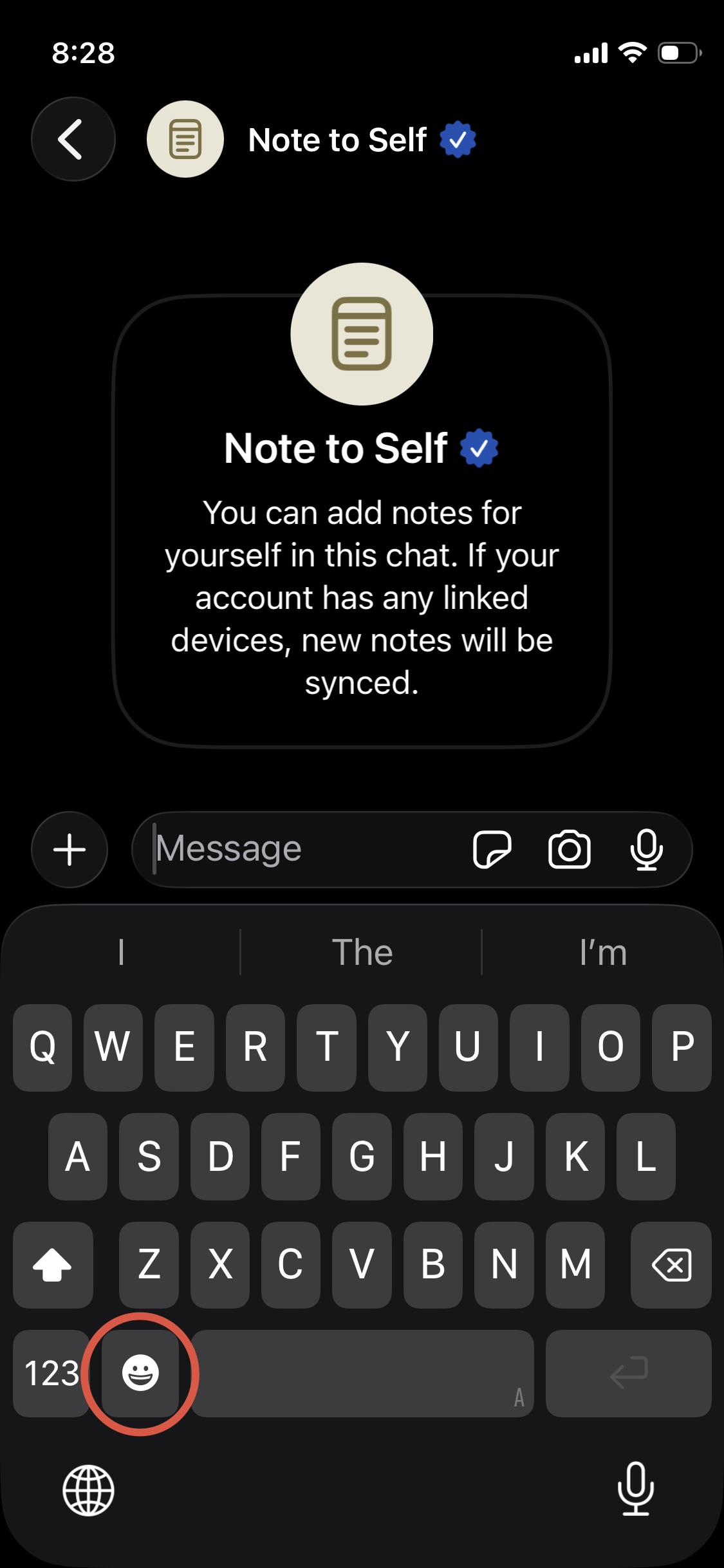
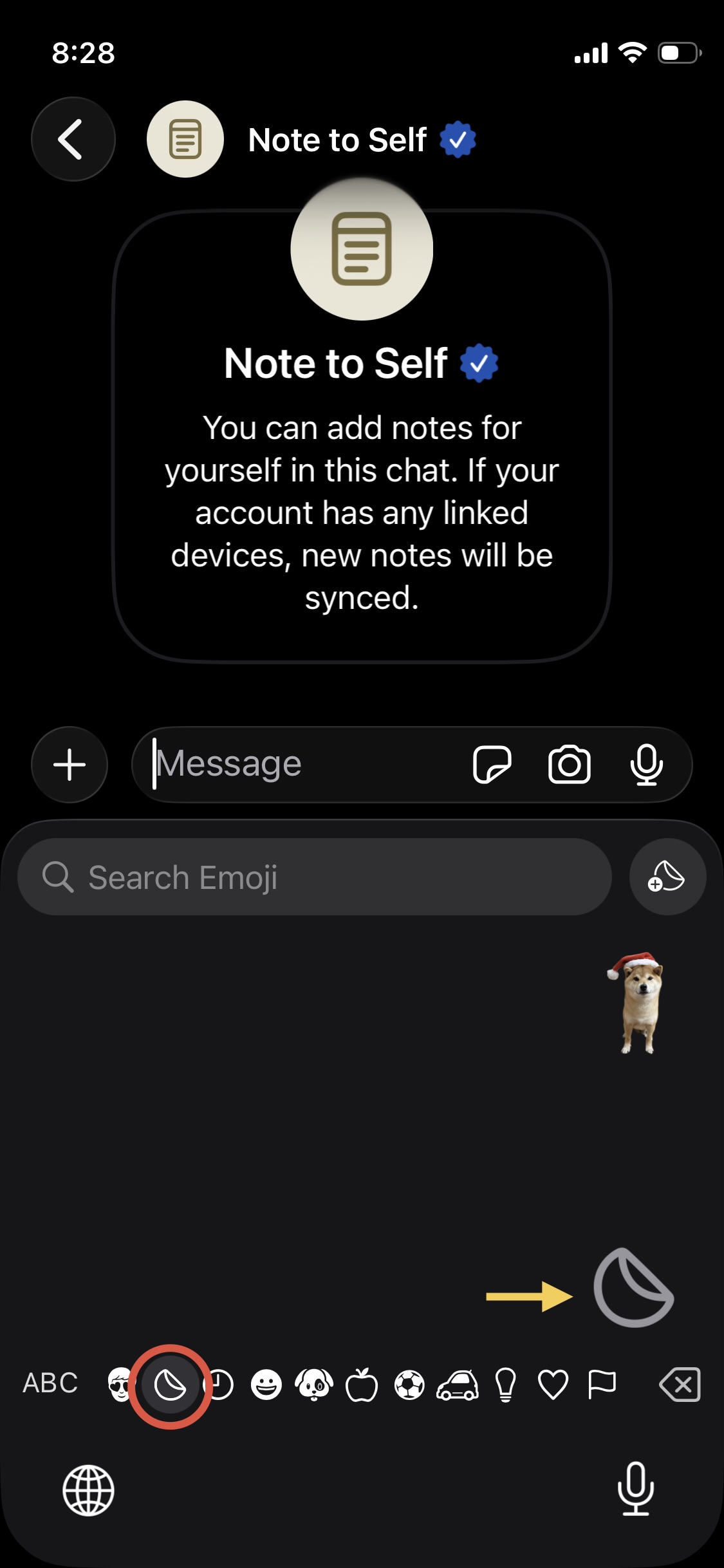
For other apps like Telegram, Signal, or Messenger, checking for compatibility is easy. Just switch to the Emoji keyboard and look for the sticker icon at the bottom.
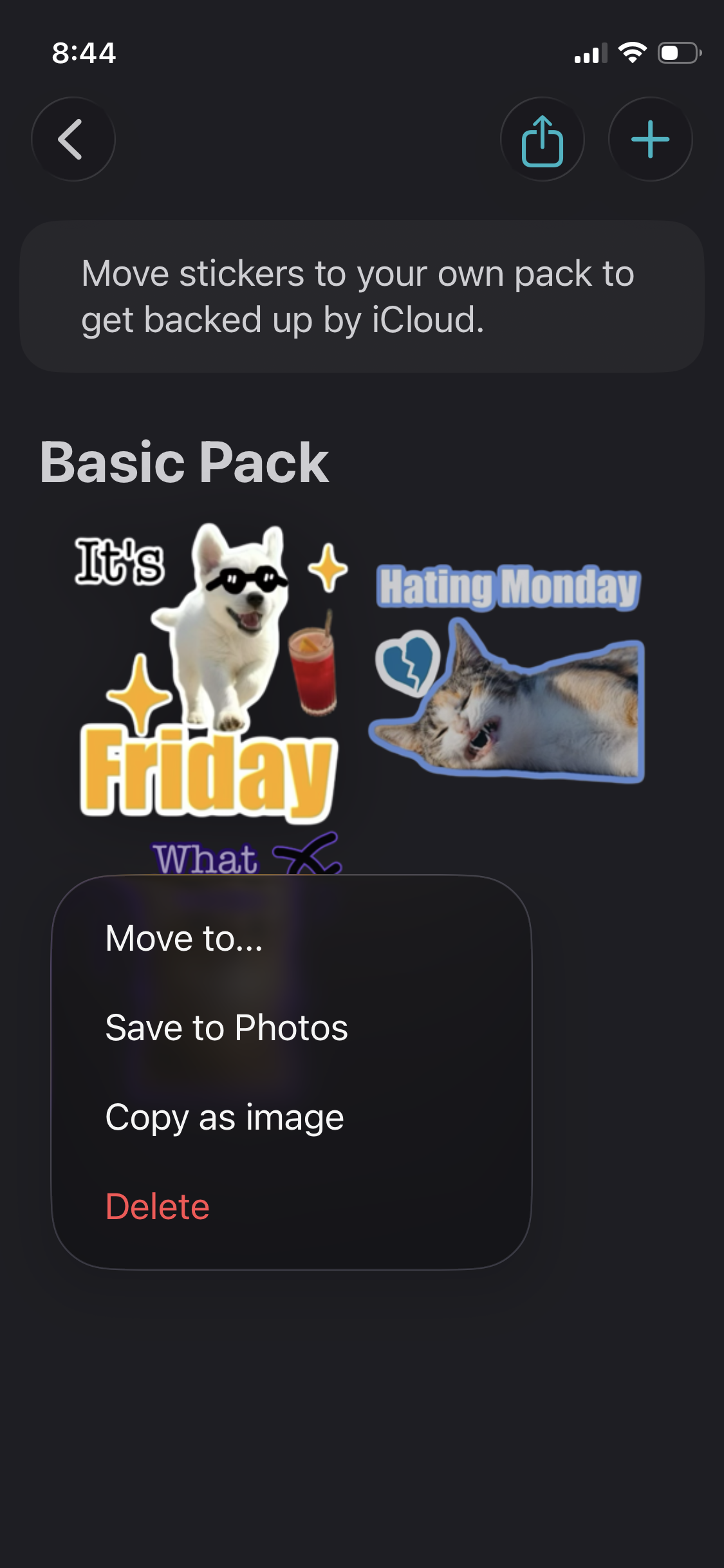
If you run into apps that don't support the sticker keyboard, no worries—Expresstic also provides a quick copy-and-paste option for you! Just head back to Expresstic, long-press the sticker you want, choose 'Copy as Image' from the menu, and paste it anywhere you like. It's that simple!
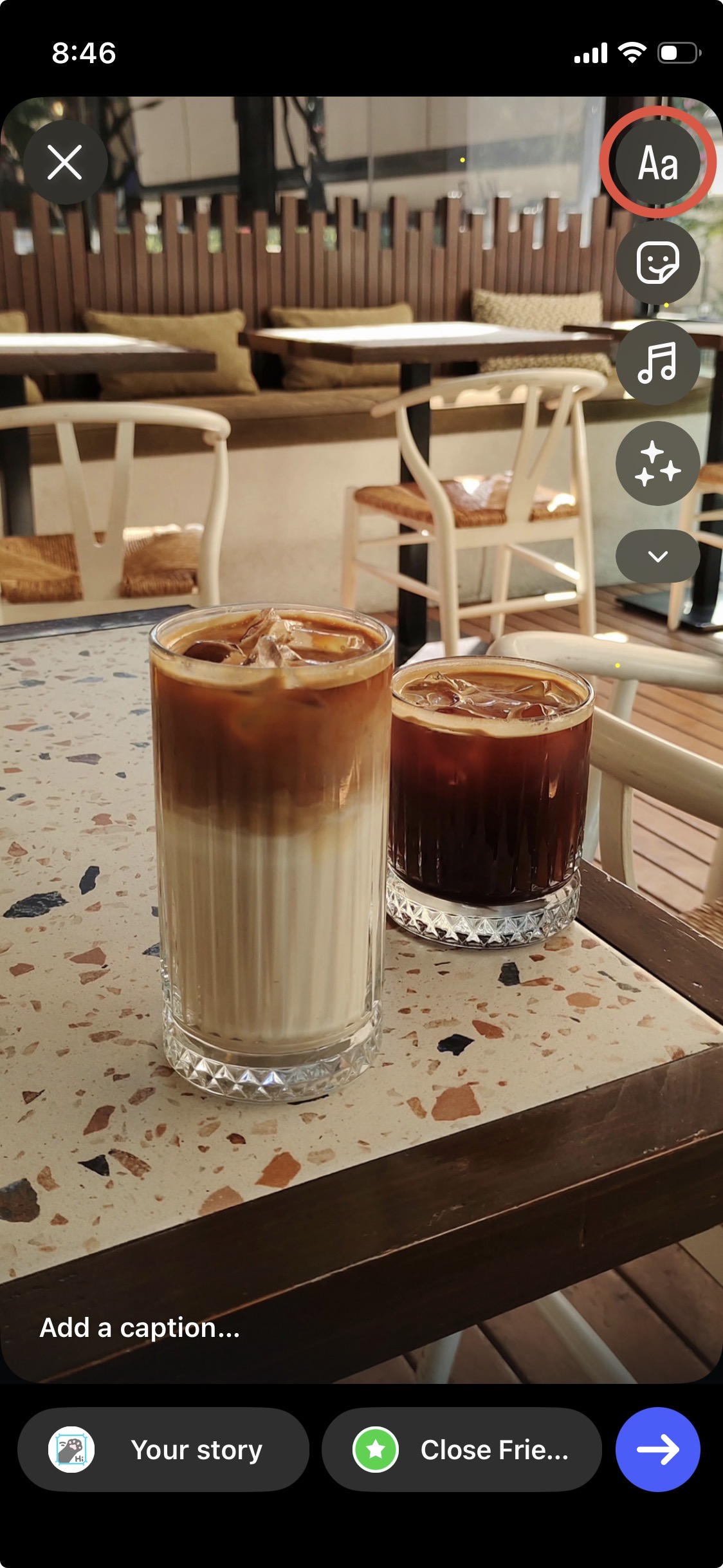
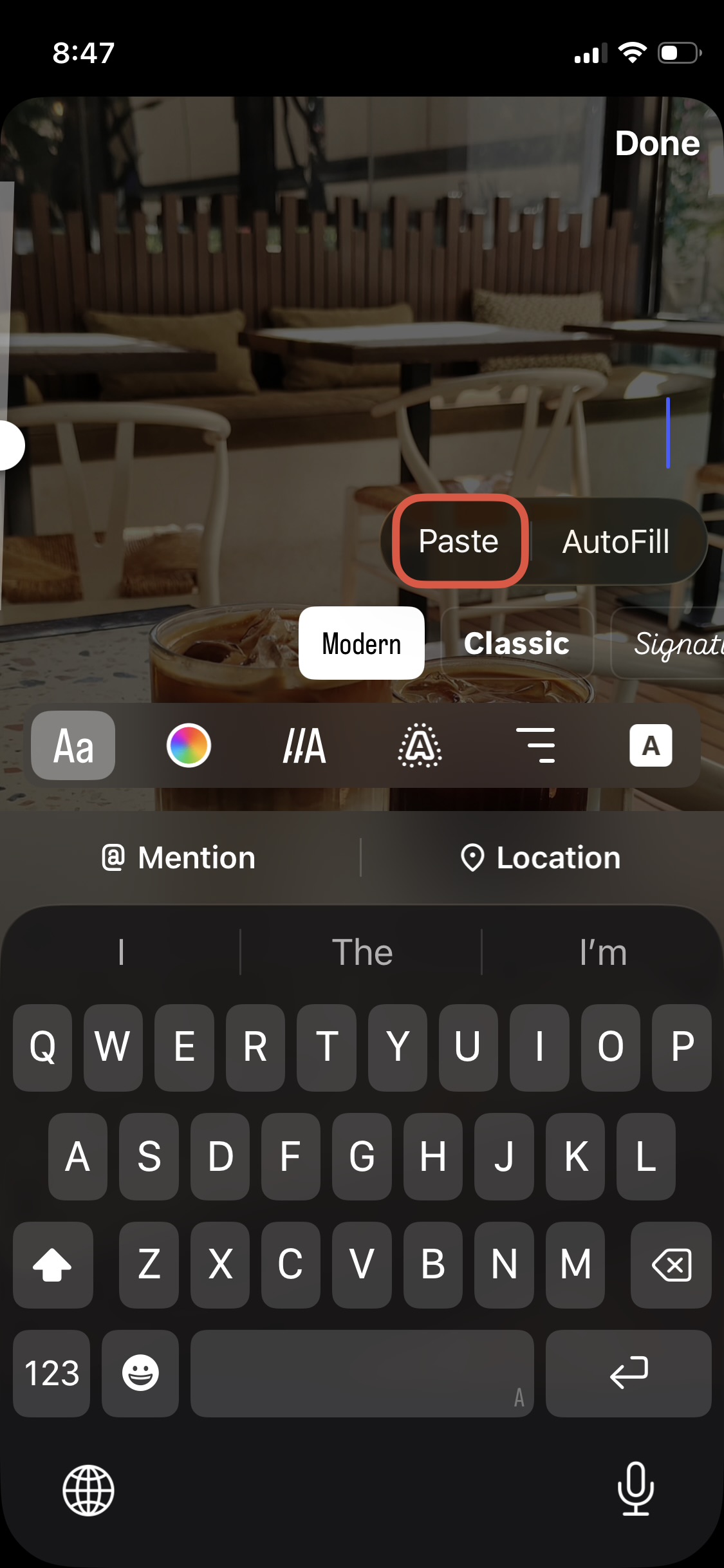
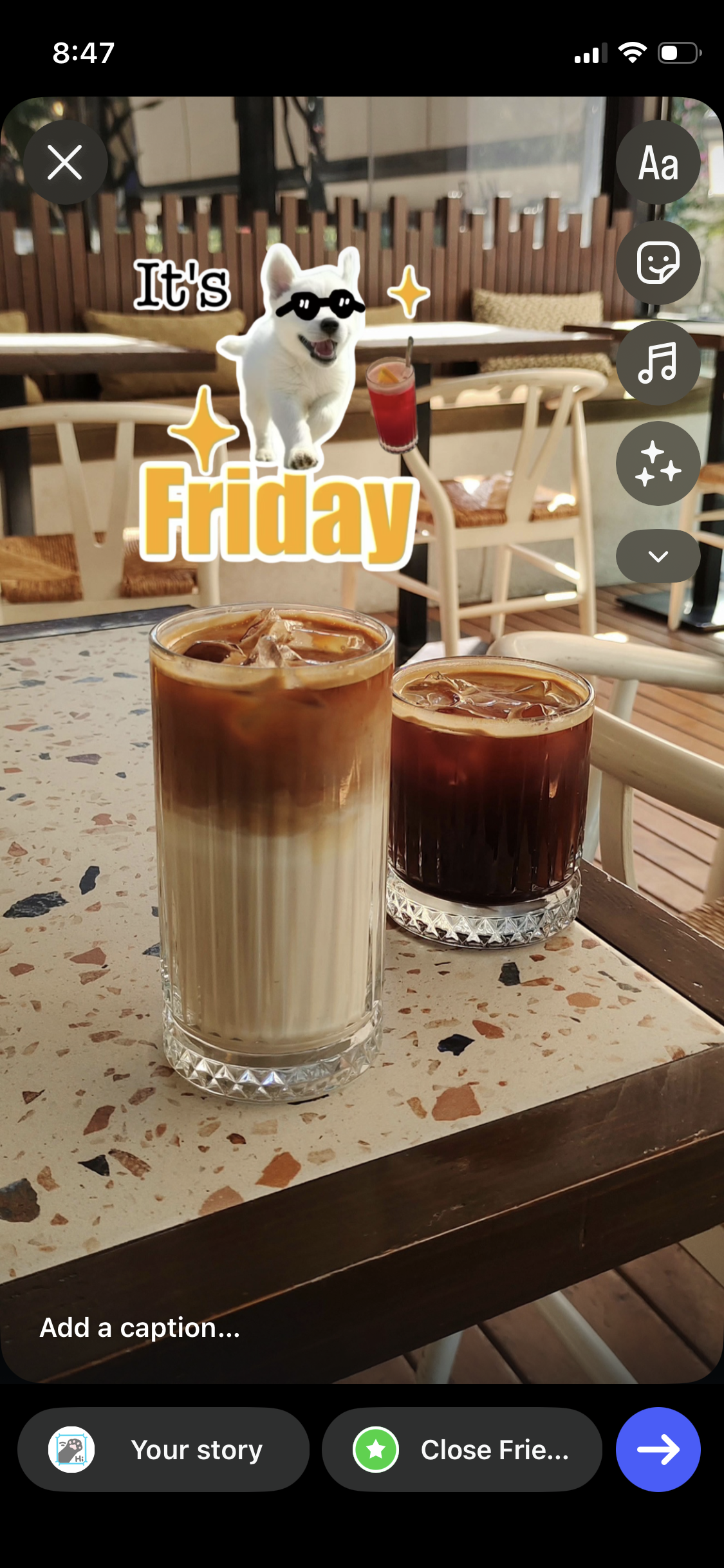
This handy trick even allows you to use stickers on your Instagram Reels and Stories by simply pasting them into the text layer.
Thanks for reading!